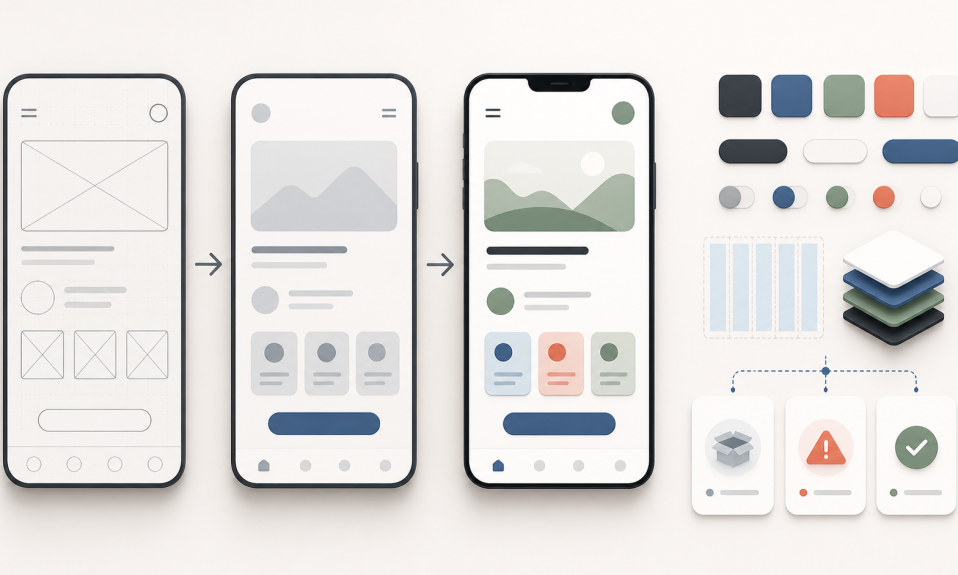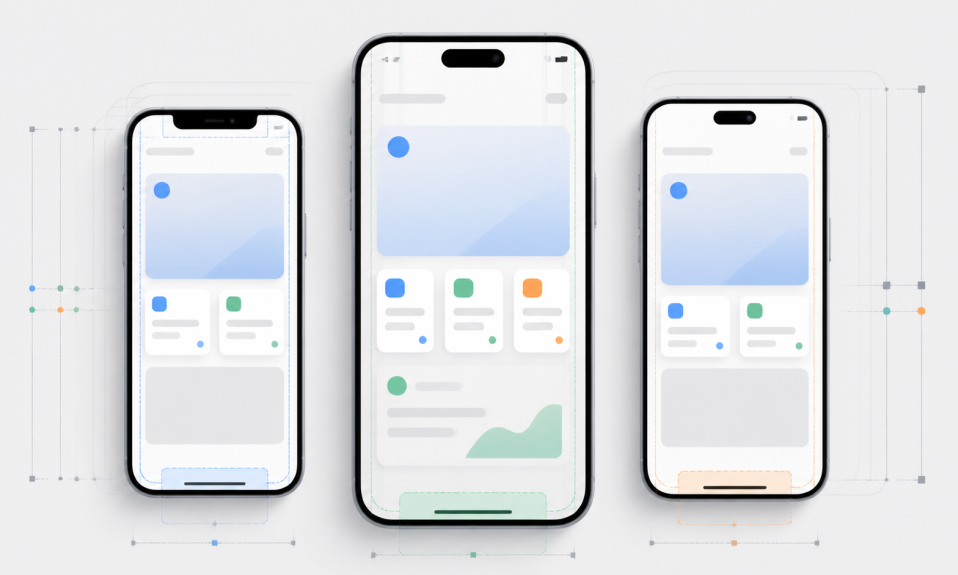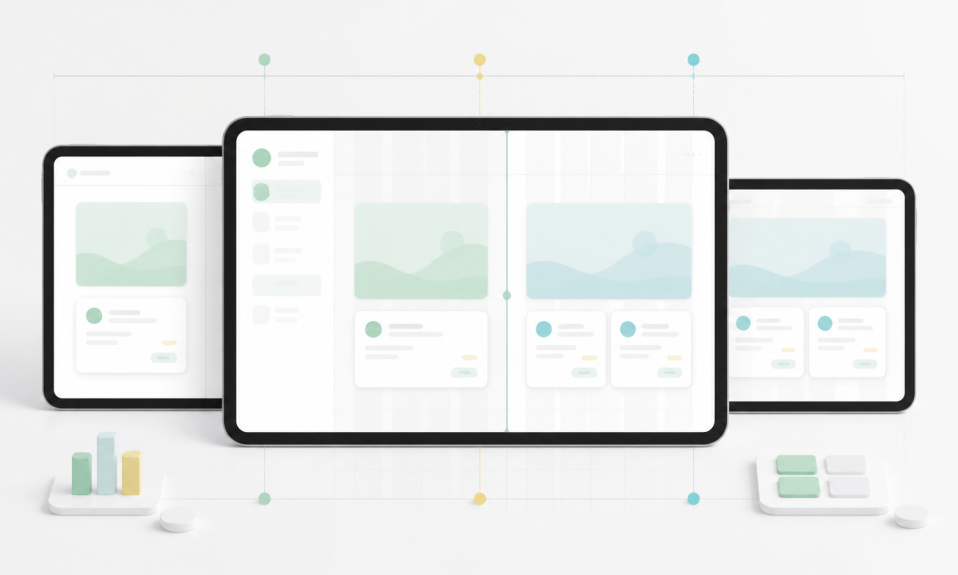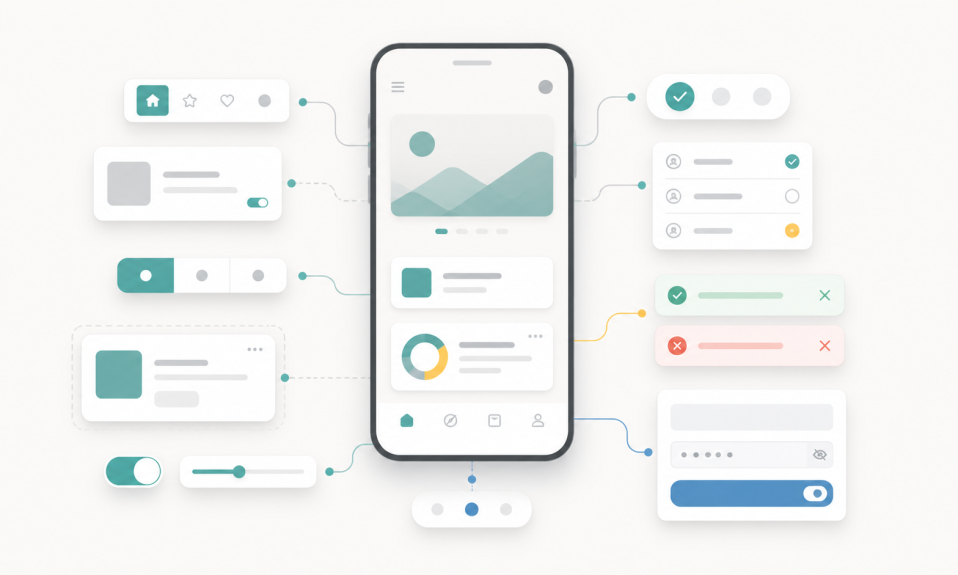
How iPhone Duo changes foldable UI/UX design, what Apple inherits from Samsung Galaxy Z Fold, and what product designers should prepare for next.
Short answer: iPhone Duo does not invent foldable UX from zero. It brings years of foldable interaction patterns into the iOS ecosystem, then changes them with Apple-specific navigation, vertical controls, Split View, reserved regions, and a stronger expectation of seamless adaptation.
For UI/UX and product designers, this is more important than a new screen size. The interface can move between a compact outer display, a large inner display, several orientations, partially folded poses, and multitasking windows—all while the user expects the same task to continue without interruption.
This guide explains what iPhone Duo changes, which habits users already bring from Samsung Galaxy Z Fold devices, and how design teams should prepare for the next phase of adaptive mobile products.
Why iPhone Duo changes the foldable design conversation
Apple’s first foldable iPhone arrives after Samsung has spent years teaching people how cover screens, large inner displays, app continuity, Flex Mode, and multi-window experiences should behave. That history matters. Users will not approach iPhone Duo as if folding phones have never existed; they will bring expectations shaped by Galaxy Z Fold and Z Flip.
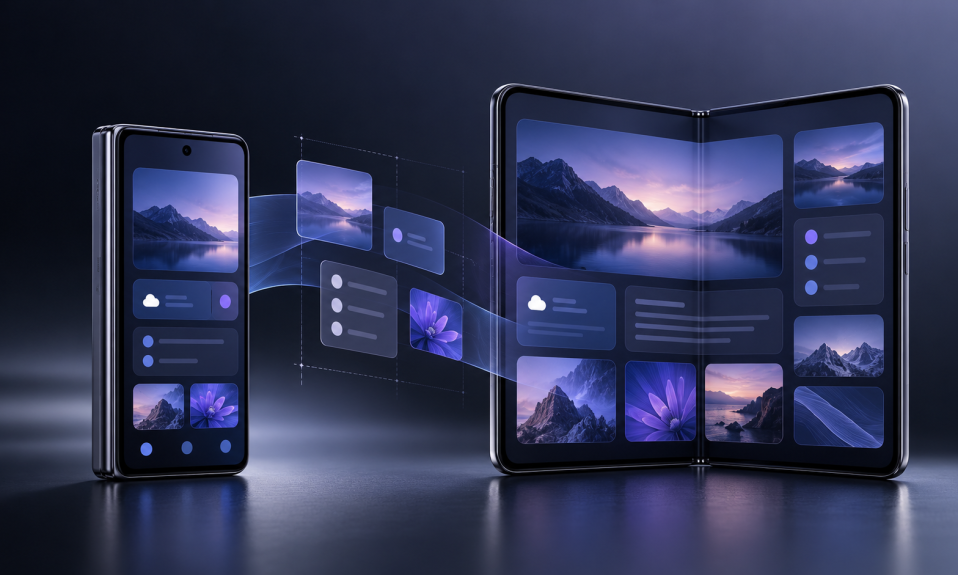
At the same time, iPhone Duo introduces a distinct iOS model. Apple describes a 5.4-inch outer display and a 7.6-inch inner display that share the same aspect ratio. The matching ratio helps content scale proportionally when the device opens, but the larger canvas is not meant to be a stretched phone screen. It can expose more hierarchy, add a second pane, move controls, and support two apps side by side.
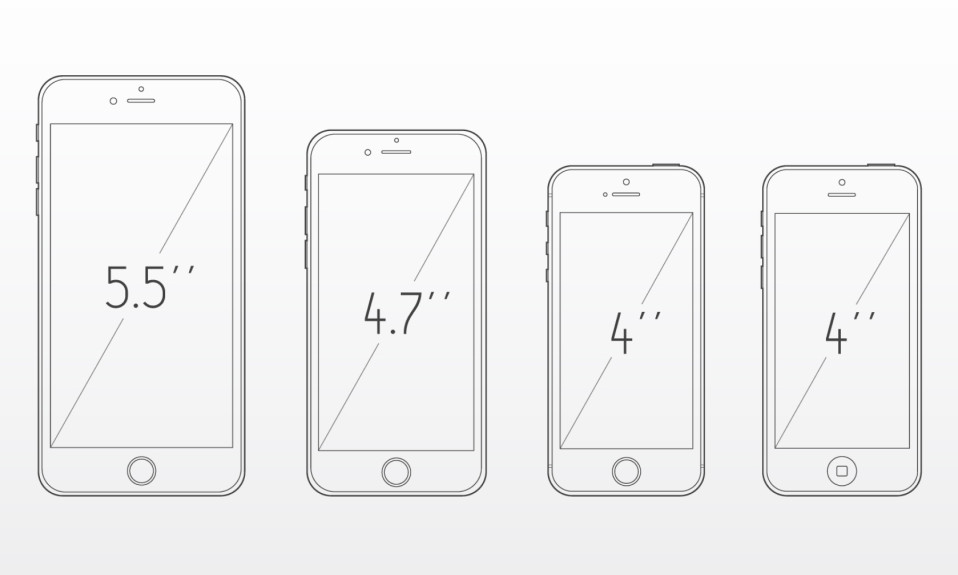
For practical artboard, point, and viewport references—including iPhone Duo’s outer and inner displays—use the Mobile Screen Sizes for UI Design: Updated Viewport Guide.
The four interface states designers need to understand
A productive iPhone Duo workflow starts with interface states, not device mockups. The same product may need to behave differently in four conditions:
| State | Primary UX job | Design priority |
|---|---|---|
| Closed outer display | Fast, focused, one-handed tasks | Preserve clarity, reachability, and the user’s current state |
| Open inner display | Deeper work, exploration, and comparison | Add hierarchy or a supporting pane instead of stretching content |
| Partially folded | Hands-free media, calls, capture, or control surfaces | Respect the fold and assign a clear role to each region |
| Split View or a resized window | Multitasking | Keep the experience useful at widths between phone and full inner display |
The critical idea is continuity. Opening the device should not feel like launching a different app. The user’s selected item, draft text, scroll position, media progress, filters, and navigation context should survive the transition.
What Samsung foldables have already taught users
1. Opening the device should preserve the task
Samsung calls this app continuity: a task started on the cover screen should continue on the main display at the same state and location. A message draft should remain a message draft. A selected product should remain selected. A video should not restart merely because the device opened.
This is now a baseline expectation, not a premium feature. If an iPhone Duo app loses state during a transition, users are likely to interpret it as a broken experience.
2. A larger screen should reveal structure
Galaxy Z Fold products established the usefulness of multi-pane layouts. Email can show the inbox and message together. A commerce app can show products and details. A design tool can keep the canvas visible while exposing controls. This reduces repeated navigation and makes the extra space productive.
The lesson is simple: do not scale a compact layout until every card becomes wider. Use the larger width to flatten hierarchy and show related information together.
3. A partial fold can become an input mode
Samsung’s Flex Mode made the hinge a functional state. Media can occupy the upper region while controls sit below. A camera preview can remain upright while capture controls rest on the table. Video calls can become hands-free.
The strongest experiences use the posture because it improves the task. Weak experiences add a special layout simply because the hardware can fold. Product designers should ask whether a posture removes friction before giving it roadmap priority.
4. Multitasking changes what “mobile” means
Foldables have normalized split-screen use, drag and drop, and multiple visible windows. The user may no longer experience an app as the only full-screen destination. Interfaces need to remain coherent when they share the display, lose width, or receive content from another app.
What Apple changes with iPhone Duo
Vertical controls become part of the hardware language
On the wider, shorter outer display, Apple moves elements such as the status area, Dynamic Island, toolbars, and tab controls to the side. The inner display can retain that vertical alignment in landscape, helping controls remain stable as the device opens.
This creates an intentionally asymmetrical canvas. Designers accustomed to centered phone layouts now need to consider a content area with a stronger trailing edge, different overflow behavior, and controls that may compete for vertical space.
The fold is a reserved region, not a decorative line
Apple’s guidance treats the hinge, fold, and camera areas as reserved regions. System components can move around them automatically, but custom components still need deliberate behavior. Important text, controls, dialogs, and selection states should never depend on the center fold remaining fully usable.
An even-column grid can divide more predictably around the fold. Split views should respect each region. Overlays, sheets, and menus need a stable home that remains reachable in every pose.
Standard components gain strategic value
Design systems sometimes treat native components as visually conservative. On a shape-changing device, they also provide adaptive behavior. Apple’s standard navigation, toolbar, split-view, and layout components can respond to size classes, reserved regions, and different poses with less custom logic.
This does not remove the need for branded UI. It changes the tradeoff: every fully custom navigation pattern now carries an additional adaptation and testing cost.
App Store optimization becomes device-aware
Apple provides dedicated iPhone Duo product-page assets and identifies optimized apps with a “Made for iPhone Duo” badge. Apple has also announced that iPhone Duo screenshots will become required for app submissions starting in April 2027.
That makes foldable readiness part of ASO and product communication, not only interface engineering. Teams need screenshots that demonstrate a meaningful expanded experience—not an enlarged compact screen with more empty space.
How iPhone Duo affects UI/UX designers
Design behavior before artboards
A cover-screen frame and an inner-screen frame are not enough. Document what happens between them. Define which elements remain fixed, which reflow, which gain detail, which move into a second pane, and which disappear only because they are no longer necessary.
A useful design specification describes at least three dimensions: available width, device posture, and reserved or occluded regions. Orientation and multitasking then become variations of those conditions.
Build adaptive component rules
Components need more than small, medium, and large visual variants. They need behavioral rules. A navigation component may change from a compact stack to a side rail. A card collection may move from one column to two or four. A list item may expose metadata that was previously hidden. A media component may separate playback and controls across the fold.
The design system should describe the trigger for each change, not attach it to a specific device name. “Expanded width with a vertical division” is more durable than “iPhone Duo open.”
Protect spatial memory
People remember where actions live. Dramatically rearranging every control when the device moves creates a new interface to relearn. Apple recommends small, necessary adjustments rather than extreme changes. Keep primary actions in recognizable positions, preserve selection, and let the additional space reveal context instead of replacing the entire composition.
Test reach, focus, and accessibility again
A control that is reachable on a compact phone can become awkward on a wide inner display. A keyboard can change the usable layout. Larger text can collapse a two-pane design. VoiceOver focus order needs to remain logical as panes appear or disappear. Reduced motion should not turn an important continuity transition into an unexplained jump.
Foldable testing therefore needs real content, long localization strings, large Dynamic Type, keyboard states, landscape orientation, partial folds, and multitasking—not only polished empty screens.
How product designers should change their process
Prioritize by user value, not hardware novelty
Not every product needs a custom half-folded mode. A banking app may gain more from reliable continuity and a clear list-detail view. A video editor may benefit from timeline controls below the fold. A fitness app may use a hands-free posture. The right response depends on the core job, not the launch event.
Write foldable behavior into product requirements
Acceptance criteria should cover transitions: what remains selected, where focus goes, whether an unsent form survives, how overlays move, and what happens when the app becomes one half of Split View. Without these rules, foldable quality is left to late-stage interpretation.
Measure transitions, not only screens
Analytics should distinguish compact, expanded, partially folded, and multitasking contexts. More importantly, teams should measure whether opening the device helps users complete deeper tasks, compare more information, edit faster, or abandon less often.
The useful product question is not “How many people opened the device?” It is “Which jobs became easier after they did?”
Include design, engineering, QA, and ASO in one release plan
A foldable release touches layout logic, state restoration, screenshots, product-page messaging, accessibility, performance, and testing. Treating it as a final UI polish task creates predictable gaps. The launch plan should connect the product experience with its App Store presentation.
A practical foldable design workflow
- Map the core task on the smallest useful width. Make the outer experience complete rather than a remote control for the inner screen.
- Identify information that can appear together. Look for list-detail, main-supporting, editor-preview, media-controls, or comparison relationships.
- Define continuity rules. Preserve navigation state, selection, scroll, playback, keyboard input, drafts, and temporary UI.
- Add posture rules only where they improve the task. Use partial folds for hands-free viewing, capture, calls, games, or meaningful control separation.
- Design around safe and reserved regions. Never assume the geometric center is available or comfortable.
- Test intermediate widths. The app may run beside another app or inside a resizable window, not only fully closed or fully open.
- Prepare App Store assets. Show why the larger canvas is useful, using real hierarchy and believable product content.
Common foldable UI mistakes
- Stretching a phone layout across the inner display.
- Designing separate outer and inner experiences that lose user state.
- Placing primary controls or text across the hinge.
- Changing navigation so dramatically that spatial memory disappears.
- Assuming landscape support is optional.
- Creating a Flex Mode layout for screens that gain no value from it.
- Testing only the fully open device with ideal content.
- Using device detection instead of adaptive layout conditions.
What should designers expect next?
Responsive design will become behavioral
Responsive design used to mean rearranging a layout at different widths. Foldables add posture, hinge angle, occlusion, multiple displays, and window state. The next generation of design systems will describe how an interface behaves across those conditions, not only how many columns it has.
Phone and tablet patterns will merge
Compact navigation will coexist with split views, sidebars, drag and drop, and creation tools. Teams that already design coherent experiences across phone, tablet, and desktop will adapt faster because their information architecture is not locked to one canvas.
Outer and inner displays may become collaborative
Apple’s scene and camera capabilities point toward experiences that use both displays: teleprompters, rear-camera previews, two-way translation, shared games, and customer-facing confirmation screens. This changes a device from one private surface into two coordinated views.
Foldable readiness will become a quality signal
Once users see apps that preserve state, use space intelligently, and adapt controls naturally, letterboxed or stretched apps will feel unfinished. Foldable support will increasingly reveal whether a product has a mature design system and resilient front-end architecture.
Frequently asked questions
Is iPhone Duo UI design the same as Galaxy Z Fold design?
No. They share core foldable principles—continuity, adaptive layouts, hinge awareness, multi-pane interfaces, and partially folded poses—but iPhone Duo adds iOS-specific vertical controls, reserved regions, Split View behavior, size classes, and Apple platform conventions.
Do designers need a completely separate iPhone Duo app?
Usually not. Apple recommends building a resizable iPhone app with standard components and adaptive layout rules. The product should preserve its identity and functionality while revealing more structure when space becomes available.
Should every app use two panes on the inner display?
No. Two panes are useful when the product contains a meaningful relationship such as list-detail, editor-preview, content-controls, or main-supporting information. A focused task may still work better as one well-proportioned pane.
What is the biggest UX risk on a foldable phone?
The biggest risk is broken continuity: losing the user’s state, position, input, or context when the device changes posture or display. A visually impressive expanded layout cannot compensate for an interrupted task.
What should a product team test first?
Start with opening and closing the device during the product’s most important task. Verify state preservation, layout adaptation, safe regions, keyboard behavior, accessibility, and the same flow in a resized multitasking window.
Related reading
- Mobile Screen Sizes for UI Design: Updated Viewport Guide
- Mobil Arayüz Tasarımı Mobil Ekran Boyutları Nedir? (Turkish)
- iPhone Ekran Boyutları: UI/UX Tasarımcılar İçin Güncel Liste (Turkish)
- More UI/UX articles
- More Product Design articles
- More Technology articles
Sources
- Apple Human Interface Guidelines: Designing for iPhone Duo
- Apple Newsroom: Apple unveils iPhone Duo
- Apple Newsroom: Developers bring new app experiences to iPhone Duo
- Apple Developer: Prepare and submit apps for iPhone Duo
- Samsung Developer: Designing for foldables
- Samsung Developer: Designing for large screens
- Android Developers: Learn about foldables
- Android Developers: Canonical adaptive layouts